
Getting started
First thing you want to be sure that you satisfy basic requirements:
- 1. Windows 10 or above
- 2. 3ds Max 2020–2026 (most tested: 2024)
- 3. Corona 10+ or V-Ray 6+ (other versions coming soon)
- 4. From now on, you can use it with Blender
Then in case if you are going to use Corefinder on multiple PCs you only need two things in check:
- 1. Shared folder accessible by all render nodes
- 2. Read/Write permissions for all nodes
Take into account that CoreFinder communicates with each other via files in shared folder. So, as much clear access software has to the folder, the clearer communication will be.
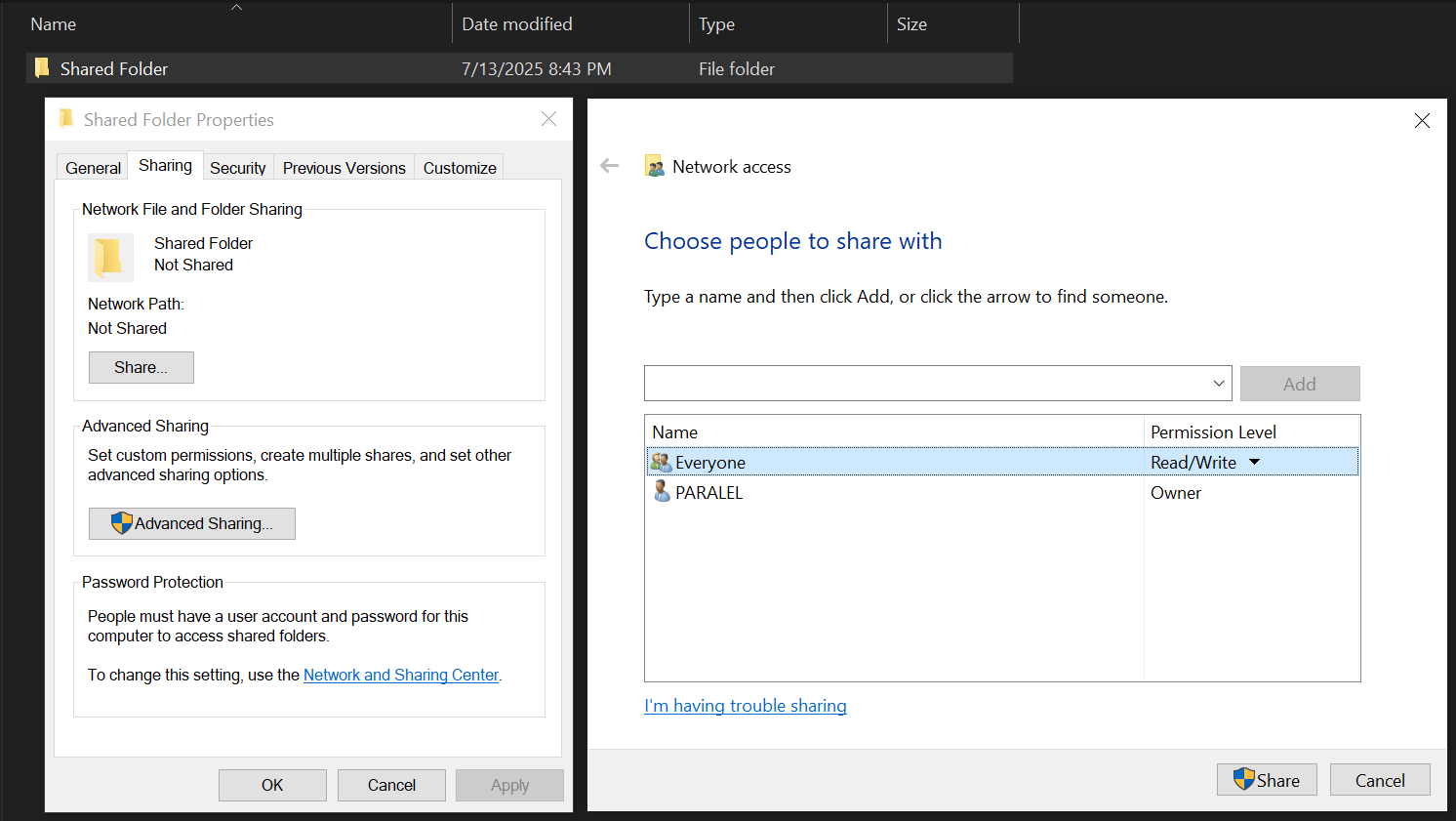
Example of shared folder setup
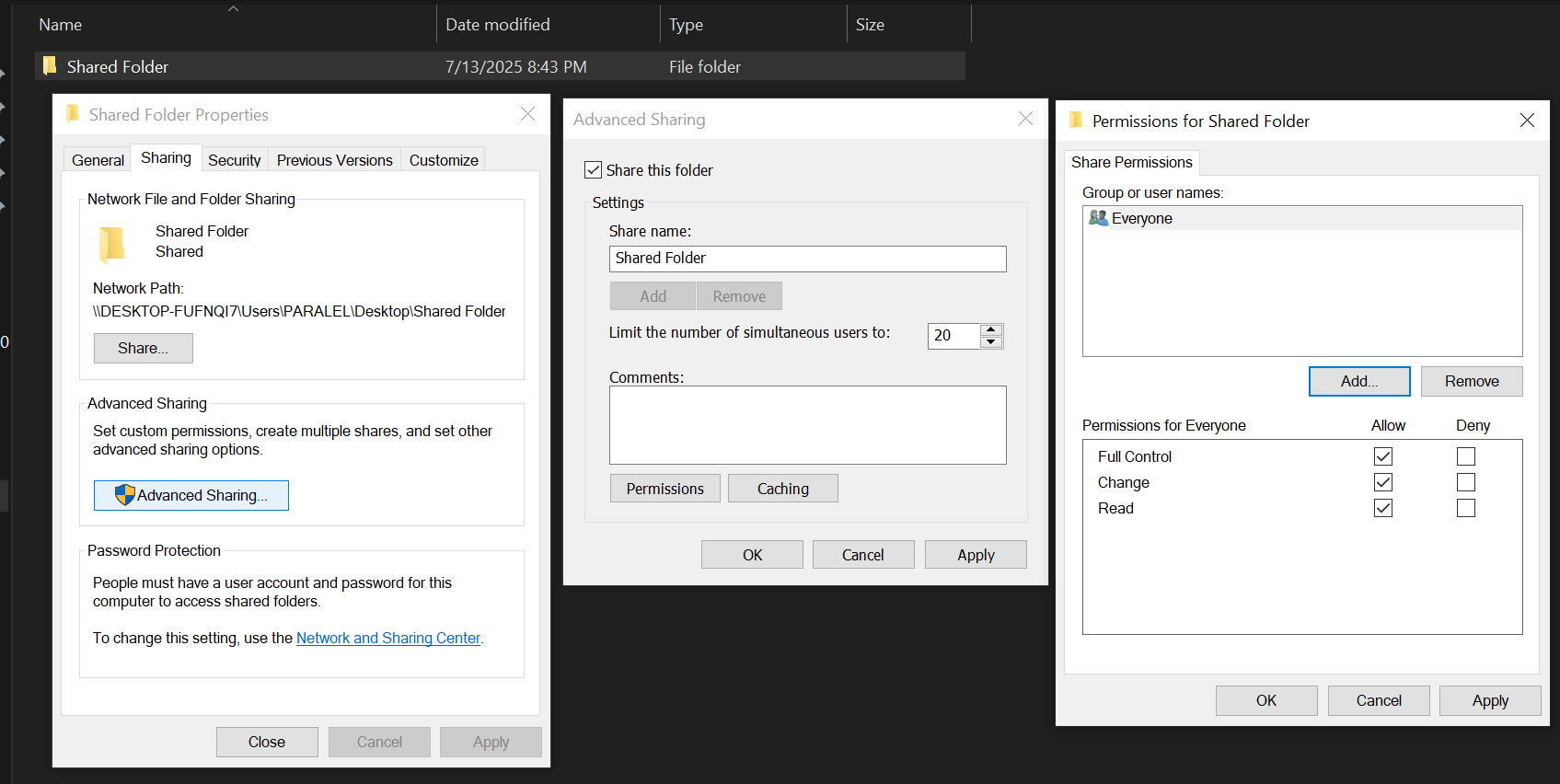
Required shared folder permissions
⚠️ Achtung:
Take into account, that under shared folders we do not mean shared Google Drive, Dropbox, or One Drive folder, but shared folder within your network.
Google Drive, Dropbox, or One Drive have huge latency and will not be supported.
For optimal performance, we recommend the following network setup:
- 1. Dedicate one computer as the central storage server
- 2. Use other computers as rendering nodes and workstations
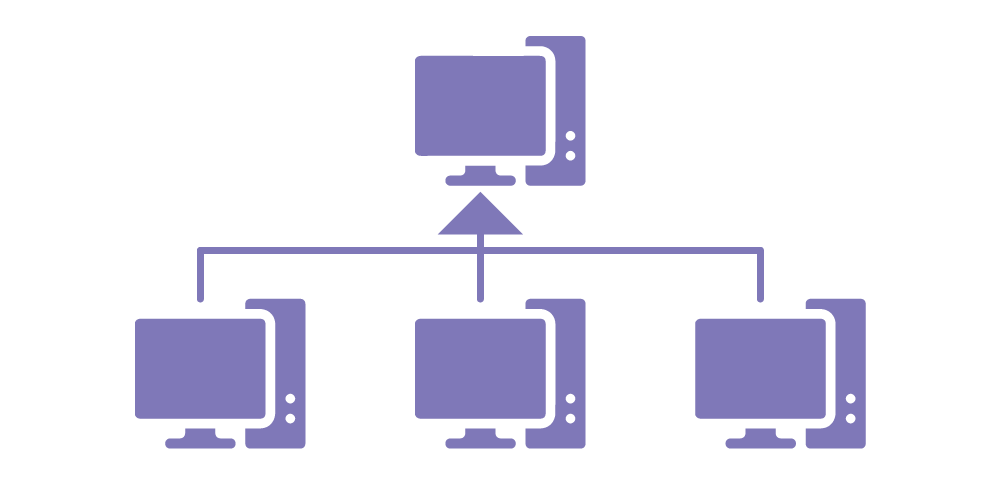
Network setup features here 3 workstation/node computers and 1 server computer. But you can use server computer as workstation or node too, we just avoid that because sometimes workstation/node needs restart, and we don't want restart the server.
For best results, ensure:
- All PCs use the same username
- All PCs access the shared folder/drive using identical paths
- All project assets are collected in a single folder on the shared drive
⚠️ Early Adopters:
Take into account, currently we are only collecting early adopters!!!
After that you can for sure buy as much licenses as many PCs are you going to use for rendering.
To get free licenses of CoreFinder you must register here.
After registration you will be granted 20 free licenses to test the product. If you want to get more licenses, you can write us and we will grant you more.
Video Tutorial
Watch our detailed video guide on getting started with CoreFinder