
Managing Rendering Tasks
Monitor, prioritize, and control rendering processes using CoreFinder. Learn how to efficiently manage your render tasks, track progress, and optimize your rendering workflow across multiple computers.
Actions
You can manage renders tasks from Task Page, you can navigate there from here:
There are few actions you can perform on deployed render tasks:
When pausing task, all rendering frames will be stopped immediately and no PCs will render task untill it's resumed.
After resuming task it will be available for rendering.
After archiving task it will no longer be in the main list, it will be put in archived tasks.
Reset will put task on pending and any progress will be reset.
After deleting task it can not be recovered, you can archive tasks instead and after some time delete archived tasks. It's the best practice to pause task, and after delete it.
Task will be duplicated and set to pending status.
Statuses
Task is looking for PC for render.
One or more frames of the tasks are currently rendering.
Task will not be rendered, until resumed.
Major error occured, and no PCs will attempt to render this task.
Only for the frames or subtasks, booked frames are in queue of render by specific PC.
Multiple Task Selection
You can select multiple tasks using keyboard shortcuts:
When selecting with CTRL you can select tasks individually by clicking them one by one.
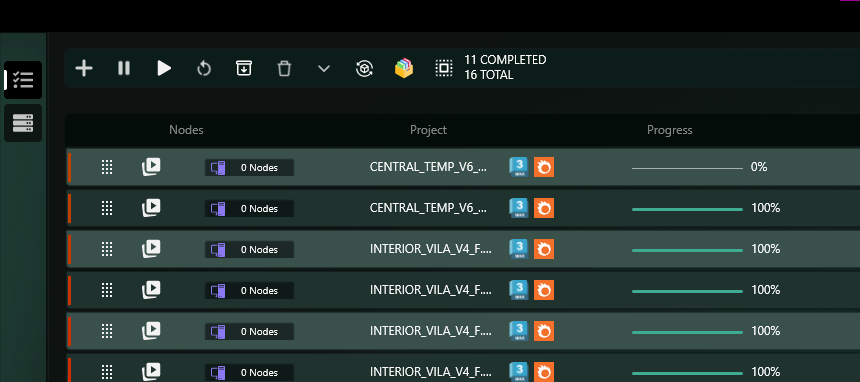
When selecting with SHIFT, click the first task and then the last task to select all tasks in between.
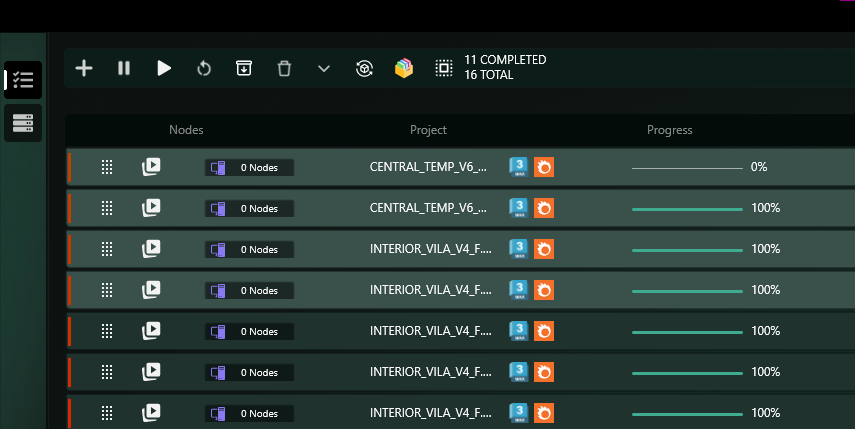
Video Tutorial: Multiple Task Selection
Video tutorial on using Shift and Ctrl clicks for multiple task selection
Start Task Options
When creating a task, you can choose how it should start:
Task will be saved with Pending status and will immediately start rendering if there are available PCs.
Task will be saved with Stopped status and will not start rendering until you manually resume it.
Video Tutorial: Start Task Options
Video tutorial on Start Task Now vs Start Task Later options
Changing Animation Frames
In case if you want to change animation frames of already saved task, you should firstly select task, then press the edit button, and set your choice of frames, after saving, you should be able to see your changes in the frame list.
Step 1: Select the task you want to edit
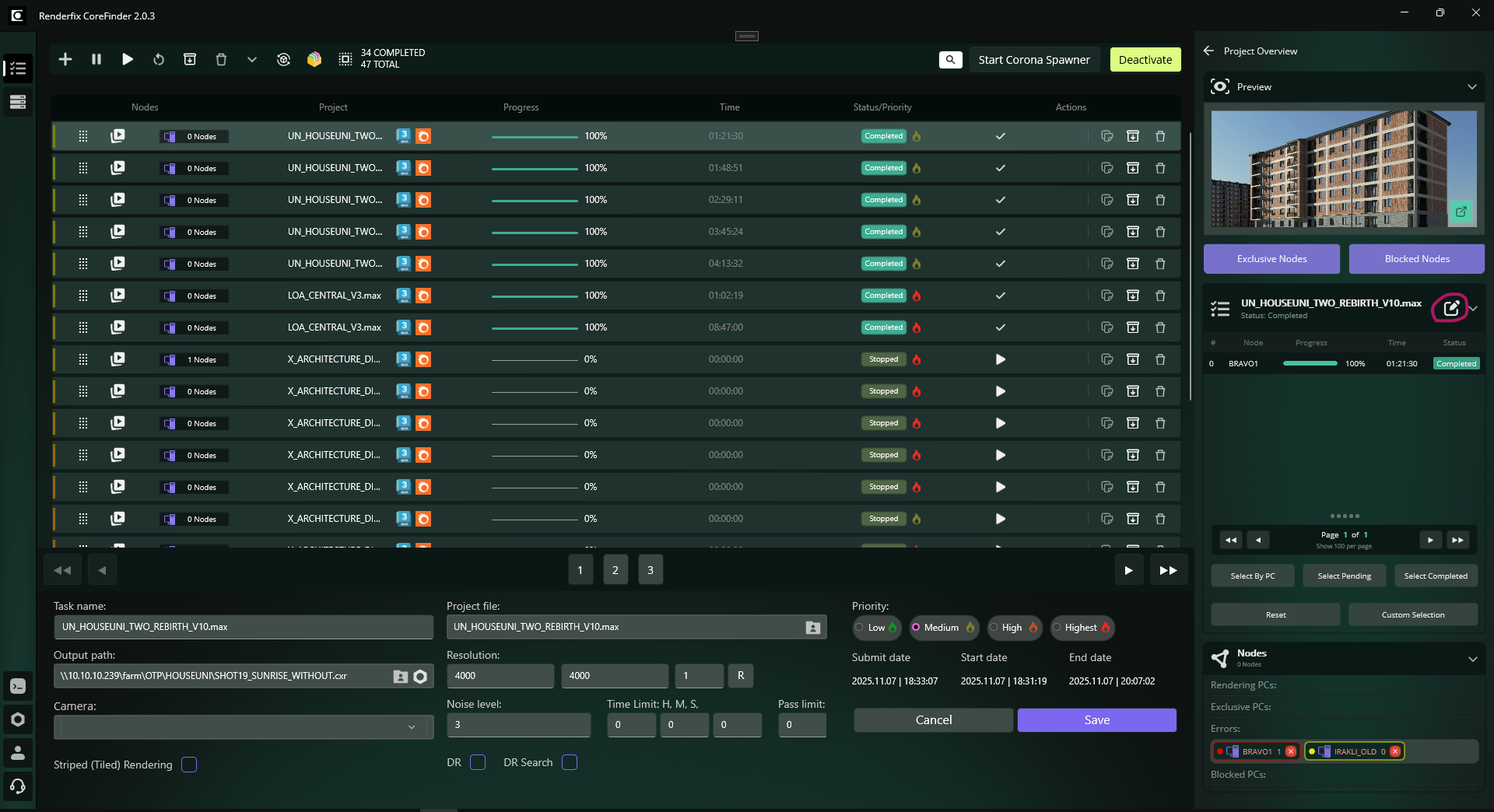
Step 2: Press the edit button and set your choice of frames
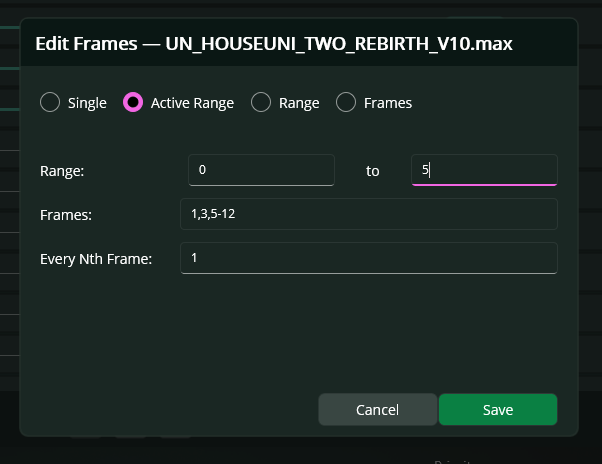
Step 3: After saving, you should be able to see your changes in the frame list
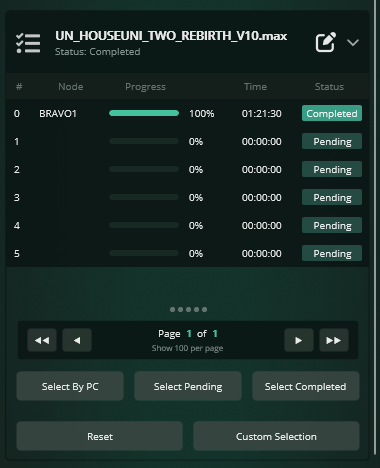
Managing tasks in CoreFinder is straightforward and efficient. Here's what you need to know:
Video Tutorials
Part 1: Task Creation and Setup
Part 2: Managing Task Priority
Part 3: Advanced Task Controls